Have you ever recorded a video you’d love to share, only to realize there’s someone in it whose face you shouldn’t post? Maybe it’s your grandchild, another person’s child, a client, or simply someone who didn’t agree to be on social media.
You don’t necessarily have to scrap the whole video.
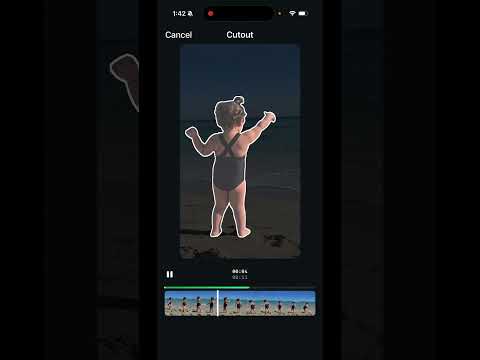
If you’re wondering how to blur faces in a video using the Edits app, there’s a way to hide a person’s face while keeping the rest of your video intact. The Edits app can identify and track a person in your clip, then let you apply a blur effect to that subject.
This can be especially helpful when you’re creating Instagram Reels or other social media videos and want more control over who appears in the finished post.
How do you blur someone’s face in the Edits app?
The tricky part isn’t adding a blur to the entire video. It’s getting the blur to stay on the person as they move.
In this tutorial, I’ll walk you through how to use the Cutout and Track Object tools in the Edits app to select the person you want to hide. You’ll then see how to apply the blur effect only to that selected subject and adjust how strong the blur appears.
I’ll also show you what happens if the tracking tool gives you an error. Because, naturally, technology likes to keep us humble.
If you have a video sitting on your phone because you weren’t comfortable showing someone’s face, watch the video below. You may be able to make it shareable without cutting that person out of the video completely.